# Viant Audiences
Freshpaint Audiences allows you to sync your segmented or imported audiences to Viant Audiences — all while enabling you to maintain compliance with privacy regulations like HIPAA.
This guide walks through how to set up and verify your connection between Freshpaint and your Viant account.
{% hint style="info" %}
In Viant, these will appear as audience segments, even though Freshpaint refers to them as “Audiences.”
{% endhint %}
{% hint style="info" %}
You must request credentials for the Viant Audiences API from your Viant representative to use Viant Audiences with Freshpaint.
💡 To activate audiences via Freshpaint (or another fully integrated CDP), Viant requires Viant-issued integration credentials to authenticate and connect Viant to your CDP. These credentials are unique to each advertiser and are different from your Viant DSP login credentials. To request credentials, contact your Viant representative.
{% endhint %}
### Viant account requirements
The following must be **true** about the Viant account you use for this process:
1. Your Viant account is associated with the Viant account used for this integration.
2. Your Viant account is in good standing with Viant and not in violation of their advertising policies.
### Connect Viant account to Freshpaint
1. To begin, select the **Viant** **Audiences** option from [Freshpaint’s Integration Catalog](https://app.freshpaint.io/destinations/catalog?category=audiences).
2. On the Viant Audiences configuration page, select the **Configure** option on the right side and enter the **Viant Account ID** and **Advertiser ID** (both are numbers like 123456789012345) for the Account and Advertiser that you want to set up. If you have multiple Advertiser IDs, you may create an additional Viant Audiences Integration for each Advertiser ID.
3. Connect your Viant account to your Freshpaint account by clicking the **Connect** button on the right. Enter the Viant Audiences API credentials you received from your Viant account representative. The credentials that you normally use to log into the Viant DSP interface will not work.
4. Click Enable, then click **Save** to agree to send the appropriate identifier to the Ad Platform. These properties are required by Viant.
5. **Click Test Connection**
\
This tests that:
* Your Viant account is associated with the Viant business account used for this integration.
* Your Viant account is in good standing with Viant and not in violation of their advertising policies.
* Your Freshpaint integration configuration is valid.
6. Finally, add a label to your integration.
✅ That’s it! Your Viant Audiences integration is now ready to use.
{% hint style="info" %}
💡 After you sync an audience from Freshpaint, you’ll manage it in Viant as an audience segment.
{% endhint %}
### Activate audiences in Viant
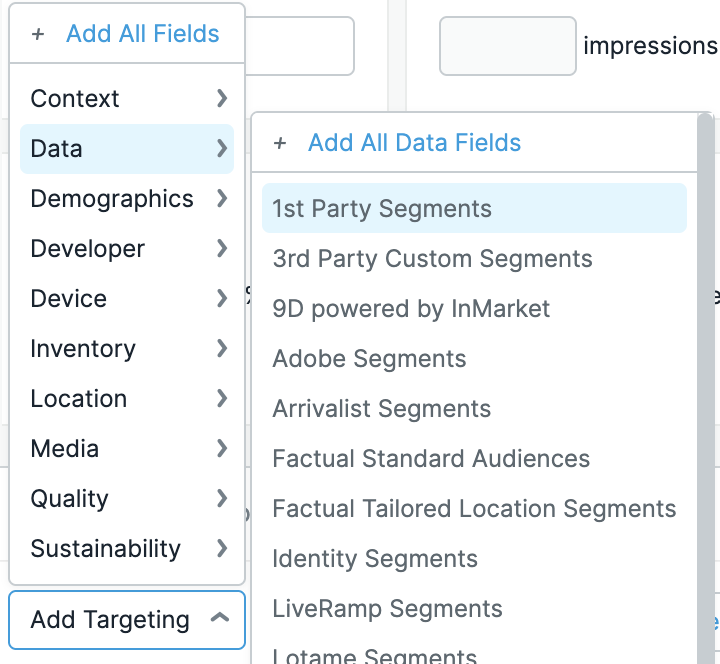
Once your 1st-party audiences have been successfully sent to Viant, you can activate them in the Viant DSP:
1. Open the **Line Item** you want to target.
2. Go to **Targeting**.
3. Click **Add Targeting**.
4. Select **Data**.
5. Select **1st Party Segments**.
**✅ Success: You can see your synced 1st-party segments available for targeting.**
### Custom Consent Manager Integration
* Refer to this destination as **Audiences** in the [Consent object](https://documentation.freshpaint.io/~/revisions/n78hLTZVTzvsB5jQ58ss/integrations/consent-management/custom-consent-manager)
💡 **Need help?**
If you're unsure how to to set up your Viant Audiences integration, please reach out to our team at .
.png?alt=media&token=dcd953e1-cf61-4be5-8631-1d1ab259e8a9)

.png?alt=media&token=14265611-db49-4bba-9c04-27112d658a44)
.png?alt=media&token=2307ed38-f668-480c-bb37-5785a4b11b5a)
.png?alt=media&token=6231197d-b7dc-436e-b835-ef107cbafe41)